Fix Android Auto Connection Issues Now
Seamless Integration: Addressing Android Auto Connectivity Challenges
By Decode Today News
Android Auto offers a powerful extension of your smartphone's capabilities directly to your vehicle's infotainment screen, enabling access to navigation, messages, and media. However, users occasionally encounter connectivity issues that disrupt this seamless experience. While rare software bugs can occur, most problems stem from connection irregularities between the Android phone and the car. This guide delves into systematic troubleshooting steps to restore full functionality.
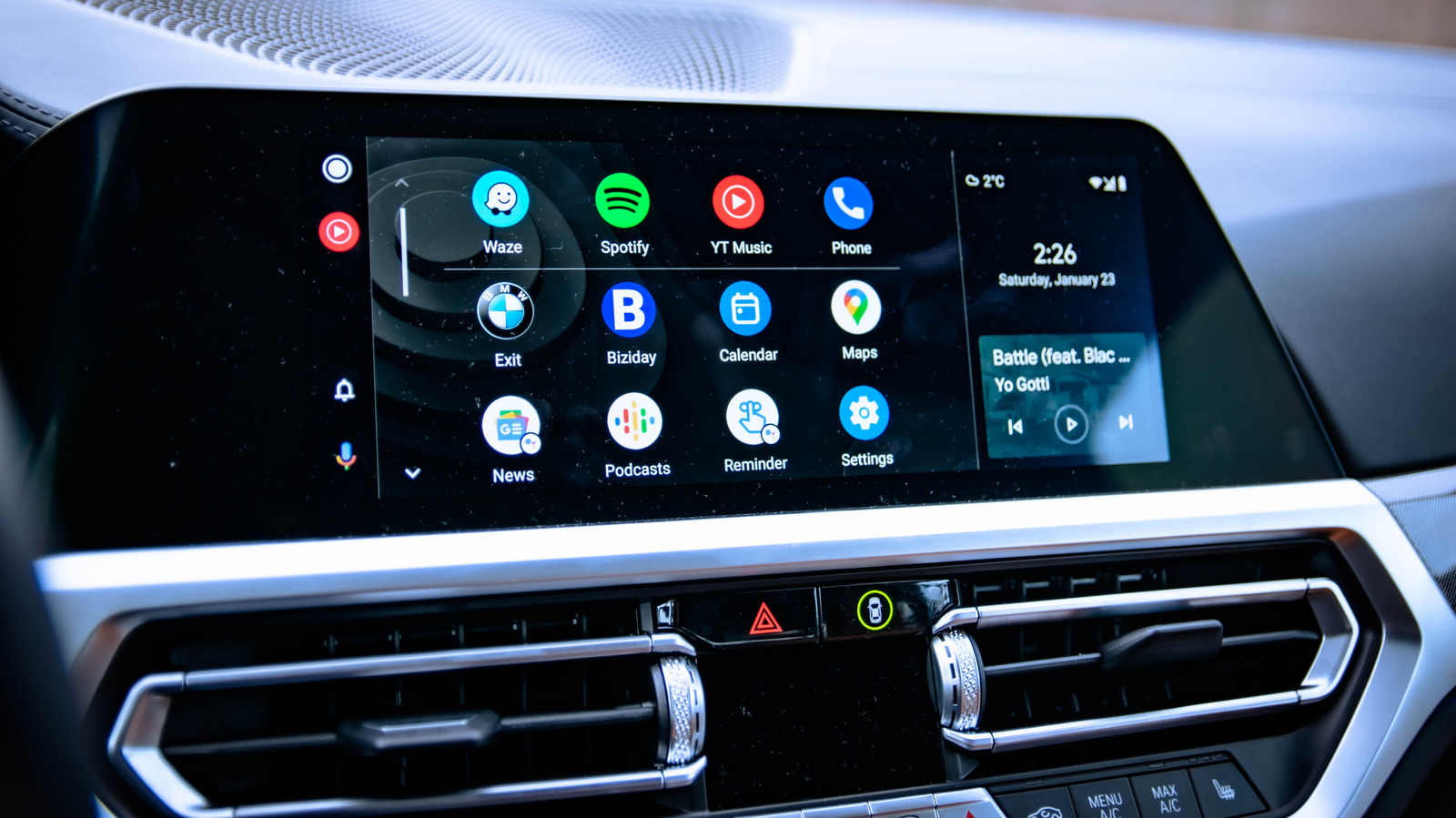
Fixing a faulty Android Auto connection typically does not require extensive technical expertise, as many common fixes are straightforward. The most frequent point of failure lies within the connection pathway itself, whether wired or wireless. Addressing these foundational elements is often the fastest route to resolution, ensuring optimal user experience and reliable automotive technology integration.
Initial Connection Checks: Wired and Wireless Foundations
The first line of defense in troubleshooting Android Auto involves a thorough inspection of your connection method.
Wired Connections: The Cable and Port Inspection
For users relying on a wired connection, the physical integrity of your USB cable and ports is paramount. Begin by verifying that the cable is properly seated at both ends – your smartphone and the car's USB port. Inspect the cable for any visible signs of damage, such as fraying, kinks, or bent connectors. Even if there are no obvious issues, the cable or port could still be compromised internally.
To rule out a faulty cable or port, consider these actions:
- Switch USB ports: If your car has multiple USB ports, try connecting to an alternative port. This helps determine if the issue is specific to one port.
- Replace the cable: Swap out your current cable for a known good, high-quality replacement. It's critical to use a USB cable designed for data transfer, not merely charging. Cheap or low-quality cables often lack the necessary shielding and data lines required for reliable Android Auto operation.
- Mind the length: As recommended by Google's guidelines, use a cable shorter than six feet (approximately 1.8 meters) and avoid any cable extensions. Longer cables can degrade data signal integrity, potentially leading to intermittent connections or complete failure.
Investing in a certified data cable is a small cost efficiency measure that can prevent significant frustration and ensure consistent device compatibility.
Wireless Connections: Bluetooth and Wi-Fi Verification
For those leveraging wireless Android Auto, the twin pillars of connectivity are Bluetooth and Wi-Fi. Both must be actively enabled on your Android smartphone for the system to function. Even if they appear connected, a manual reset can often resolve underlying communication glitches.
- Toggle Bluetooth and Wi-Fi: Ensure both are switched on. If they are already active, try toggling them off and then back on.
- Force a reconnection: Disconnect from your car's wireless network and Bluetooth profile, then attempt a manual reconnection. This forces a fresh handshake between your phone and the vehicle's infotainment system.
- Car infotainment menu: Confirm that your car's infotainment system is in the correct menu or app to initiate or receive an Android Auto connection. This step ensures the car is actively listening for your device.
The Three R's: Restart, Remove, Reconnect
Once you've verified the fundamental connection pathways, if the problem persists, it's time to employ a standard troubleshooting trifecta that often resolves software-related anomalies on your Android phone.
Restart Your Phone: Clearing the Digital Slate
Restarting your smartphone, while seemingly simple, is a highly effective step. It clears any background processes, temporary files, and transient errors from your phone's memory, providing a fresh operational state. This can resolve conflicts or memory leaks that might be interfering with Android Auto's performance or its ability to establish a stable connection.
This act of resetting can significantly improve system stability and device performance, which are crucial for demanding applications like Android Auto.
Remove and Re-pair: A Fresh Configuration
After restarting your phone, the next step involves completely removing the existing Android Auto connection profile from your phone and re-pairing it as if it were a new device. This eliminates any corrupted settings or outdated configurations that might be causing issues.
The exact steps may vary slightly depending on your Android model and OS version, but generally follow this path:
- Open your phone's Settings app.
- Navigate to Connected Devices or similar (you can also use the search bar within Settings for "Android Auto").
- Select Android Auto from the list.
- Locate your car's profile and tap Forget or Remove to delete the connection.
- Once removed, initiate a new connection by tapping Connect a Vehicle and follow the on-screen prompts, ensuring your car's infotainment system is also in the appropriate connection mode.
While in this menu, also take the opportunity to review your Android Auto settings. Consider enabling options such as "Start Android Auto automatically for your car" for enhanced user experience. You might also choose to allow Android Auto while your phone screen is locked, depending on your personal privacy preferences.
Deeper Dive: App Settings, System Updates, and Permissions
If the above steps haven't resolved the issue, it's time to investigate deeper into the application's configuration on your Android smartphone and the overall system health.
Clearing Cache and Data for Android Auto
The Android Auto app, like any other application, stores temporary files (cache) and user data. Over time, these can become corrupted, leading to unexpected behavior. Clearing the cache can resolve minor glitches, while clearing all data performs a full reset of the app's settings.
To clear the app's cache or data:
- Go to Settings on your Android phone.
- Tap on Apps or Apps & notifications.
- Find and select Android Auto in the list of applications (you might need to search for it).
- Tap Force Stop for good measure to ensure the app isn't running in the background.
- Select Storage.
- You'll then have two options:
- Clear Cache: This removes temporary files and is generally safe.
- Clear Data: This removes all user data and settings for the app, essentially resetting it to a fresh installation state. You will need to set up Android Auto from scratch afterward.
After clearing data, you will likely need to reconnect and set up Android Auto as a new connection to mirror your apps to the car display.
Ensuring Software is Up-to-Date
Software updates are critical for maintaining system stability, fixing bugs, and enhancing security. An outdated Android OS or Google Play Services can lead to compatibility issues with Android Auto.
- Update Android OS: Check for and install any available system updates for your Android phone. Go to Settings > System > System update (or similar path) to check.
- Update Google Play Services: Ensure Google Play Services is also up-to-date, as it's a core component for many Google applications, including Android Auto. These updates usually happen automatically, but you can manually check via the Google Play Store for critical updates.
Regular updates contribute significantly to the long-term system stability and cybersecurity posture of your device, ensuring optimal performance for applications that rely on deep system integration.
Advanced Considerations and Workarounds
If the problem persists after all previous steps, consider these less common but equally important factors.
Testing Connection Methods: Wired vs. Wireless
If you've been troubleshooting a wireless connection without success, try a wired connection to see if it works, and vice versa. This helps isolate whether the issue is specific to one connection method or if it's a broader problem with Android Auto itself or the car's system. Some older vehicles might only support wired Android Auto, though third-party wireless adapters are available for those seeking cordless convenience.
Understanding the Mechanics of Android Auto Permissions
Android Auto requires specific permissions on your smartphone to function correctly. If, for instance, you're unable to send messages or make calls, it's likely due to restricted access to your contacts or microphone. You can manage these permissions:
- Go to Settings > Apps.
- Select Android Auto.
- Tap on Permissions and ensure all necessary permissions (e.g., contacts, microphone, location, SMS) are granted.
Proper permission management is a fundamental aspect of consumer security and application functionality, ensuring that apps only access what they need to perform their intended tasks.
VPN Interference and Battery Saver Modes
- Virtual Private Networks (VPNs): VPNs are known to interfere with Android Auto's connection to your car. If you use a VPN, try disabling it temporarily or using its split tunneling feature to allow Android Auto to bypass the VPN connection. This avoids potential network conflicts.
- Battery Saver Mode: Running your smartphone in battery-saving mode can restrict background processes and data usage, potentially hindering Android Auto's performance or connectivity. Temporarily disable battery saver mode to rule it out as a cause.
These minor settings can have a significant impact on enterprise integration capabilities and the smooth operation of demanding applications.
Final Diagnostic Steps
If all troubleshooting efforts fail, consider two final diagnostic steps:
- Test with Another Phone: If you have access to another compatible Android phone, try connecting it to your car. This helps determine if the problem is specific to your handset or if the vehicle's infotainment system is at fault.
- Verify Car Compatibility: As a final precaution, double-check that your car model and year are indeed officially compatible with Android Auto. While this is usually established early on, compatibility lists can evolve, and confirming this baseline ensures you're not chasing a non-existent solution.
By systematically working through these checks, most users can successfully resolve common Android Auto connection issues, restoring the convenience and functionality of their in-car smartphone integration.