Find My iPhone: Disable Safely or Stay Protected
Navigating Find My iPhone: When to Disable for Device Management
By Decode Today News
Apple's Find My service is a critical cybersecurity feature designed to help users locate a lost, stolen, or misplaced iPhone, iPad, or other Apple device. Leveraging a crowdsourced network, it can even approximate device location when powered off, enhancing device recovery capabilities. However, there are specific scenarios where disabling this integral feature becomes necessary, primarily before selling, trading in, or sending a device for repair, as recommended by Apple.
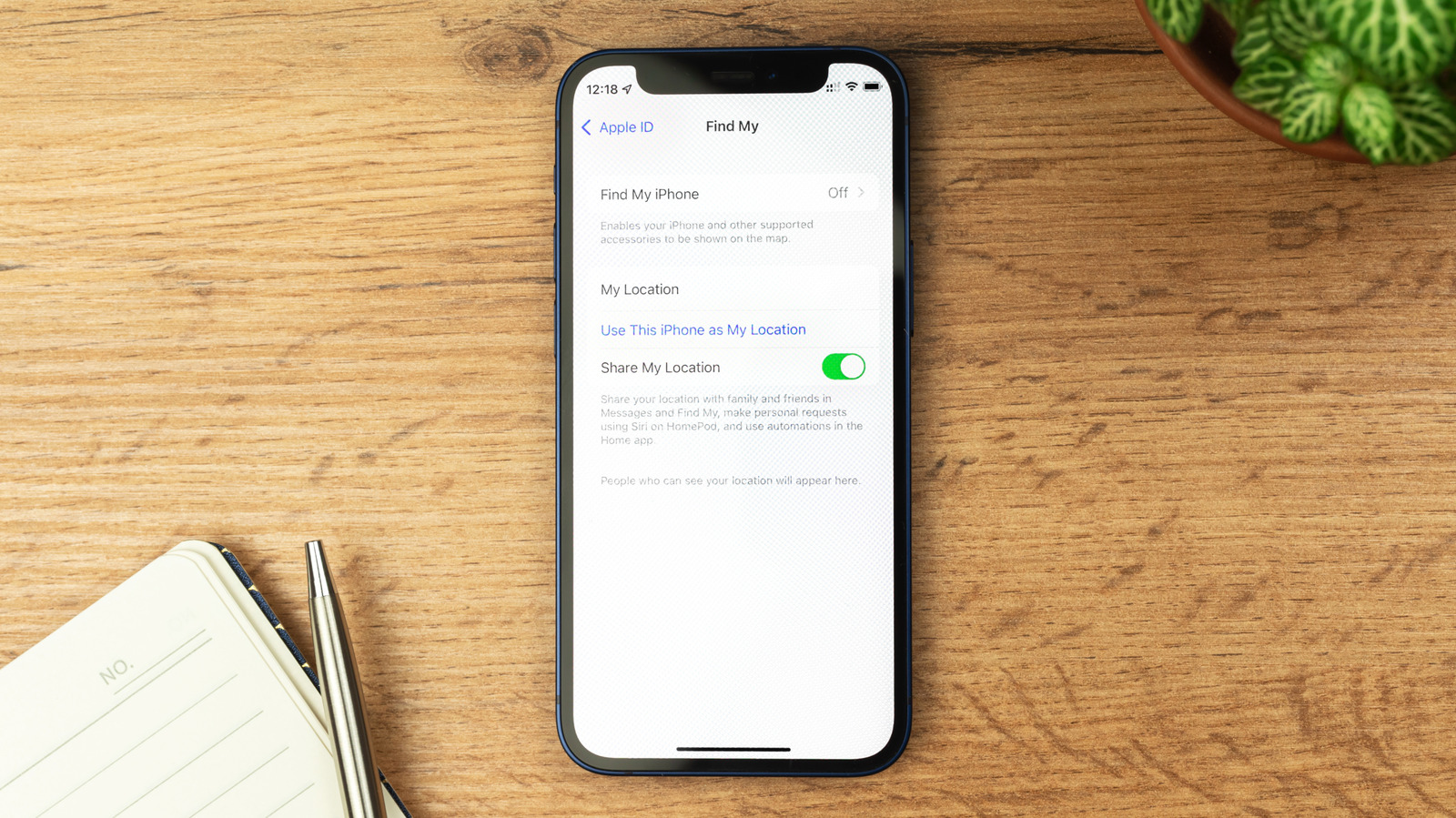
Disabling Find My ensures that technicians can perform necessary diagnostics and repairs without security protocols hindering their work. Conversely, keeping the feature active at all other times is paramount for maintaining robust device security and mitigating cybersecurity risk.
Disabling Find My for Sale or Trade-In: The Factory Reset Approach
For users planning to sell, give away, or trade in their iPhone, the most straightforward and secure method to disable Find My is through a factory reset. This process, initiated via Settings > General > Transfer or Reset iPhone > Erase all Content and Settings, is designed to completely wipe the device of all personal data. Critically, it will prompt for your Apple Account password to verify authorization, automatically deactivating Find My as part of the reset sequence.
This action also disables Activation Lock, a pivotal security mechanism that links your Apple Account to the device. With Activation Lock enabled, the device remains unusable without the associated Apple Account credentials, even if someone attempts a factory reset. This feature serves as a significant deterrent against theft, rendering a stolen iPhone largely useless for resale.
It is important to note that if your device is lost or stolen, performing a remote erase through the Find My app or iCloud on a computer will maintain both Find My and Activation Lock, continuing to protect your device and allow for tracking.
Manual Deactivation for Repairs and Understanding Stolen Device Protection
When sending a device for repairs without intending to factory reset it, such as for specific hardware issues, Find My must be disabled manually. The process is straightforward:
- Navigate to Settings on your iPhone.
- Tap on [Your Name] at the top of the menu.
- Select Find My.
- Tap Find My iPhone and toggle the feature off.
Users should be aware that if Stolen Device Protection is enabled, the option to toggle off Find My iPhone will appear grayed out. Stolen Device Protection, a default feature since iOS 26.4, introduces enhanced security measures when your iPhone is away from familiar locations like your home or workplace. This safeguard is crucial for protecting sensitive data, such as stored passwords, if your phone is stolen and the thief knows your passcode. It mandates Face ID or Touch ID for accessing sensitive information and implements a security delay before critical settings, like your Apple Account password, can be altered.
To manually disable Find My when Stolen Device Protection is active, you must first deactivate the protection itself. It is advisable to do this while in a familiar location, such as your home, to bypass the aforementioned security delays. The steps are:
- Go to Settings.
- Select Face ID & Passcode.
- Tap Stolen Device Protection and toggle it off.
Once your device has been serviced, it is strongly recommended to re-enable both Stolen Device Protection and Find My by following these steps in reverse, thereby restoring your device's full security posture.
Deconstructing Apple's Find My Ecosystem: Features and Implications
Understanding the full scope of Find My is essential for effective device management and cybersecurity. Beyond basic location tracking, Find My offers additional features, including:
- Lost Mode: This feature allows you to display a custom message with your contact number on the screen of a lost device, significantly increasing the chances of its return.
- Location Sharing: Users can share their location with trusted friends and family, a useful feature for personal safety and coordination.
Disabling the entire Find My suite will render these features inaccessible. The most significant consequence is the inability to locate your device via the Find My app on another Apple device or through the iCloud website in a browser. Furthermore, Activation Lock will no longer protect the phone, making it vulnerable to unauthorized use and resale.
If concern arises regarding a specific individual having access to your location, a more granular approach is available. Instead of disabling the entire Find My service, users can selectively revoke sharing access:
- Open the Find My app.
- Tap the People tab.
- Choose the person whose access you wish to remove.
- Select Stop Sharing My Location.
Unless the recipient is using an older operating system, they will typically not be notified that sharing has ceased, though they may observe your name no longer appearing in their Find My app.
Critical Advisory: When Find My Must Never Be Disabled
There is one paramount scenario where Find My should unequivocally remain active: after your device has been lost or stolen. Despite receiving intimidating messages or fraudulent pleas demanding its deactivation, users must resist these attempts.
There are numerous documented instances, including widespread reports on social media platforms, where individuals who lost their phones subsequently received messages threatening to publish personal data or fabricating distressing stories, all with the objective of coercing them into disabling Find My. These tactics exploit consumer demand and human empathy, but succumbing to them eliminates the primary layer of protection.
As long as Find My is enabled, Activation Lock renders your lost device unusable and unsellable to a thief. While you can remotely erase the phone to protect your personal data, disabling Find My would grant unauthorized access and value to the stolen property, directly benefiting criminals. Maintaining Find My activation is an essential enterprise integration of personal cybersecurity into everyday device usage, ensuring long-term data protection and device integrity.