iPhone Custom Stickers: Create & Manage Personal Reactions
Elevating Digital Engagement: Personalizing Your iPhone Conversations
By Decode Today News
In an era defined by rapid digital communication, the quest for more personal and expressive interaction tools remains paramount for iPhone users. While emojis and GIFs have long served as the digital lingua franca for conveying emotion, their inherent limitations in variety and specificity often leave users searching for more. This evolving consumer demand for richer, more customized forms of expression has led to the widespread adoption of iPhone stickers – custom "stickable" images that transform ordinary chats into vibrant, personalized exchanges.
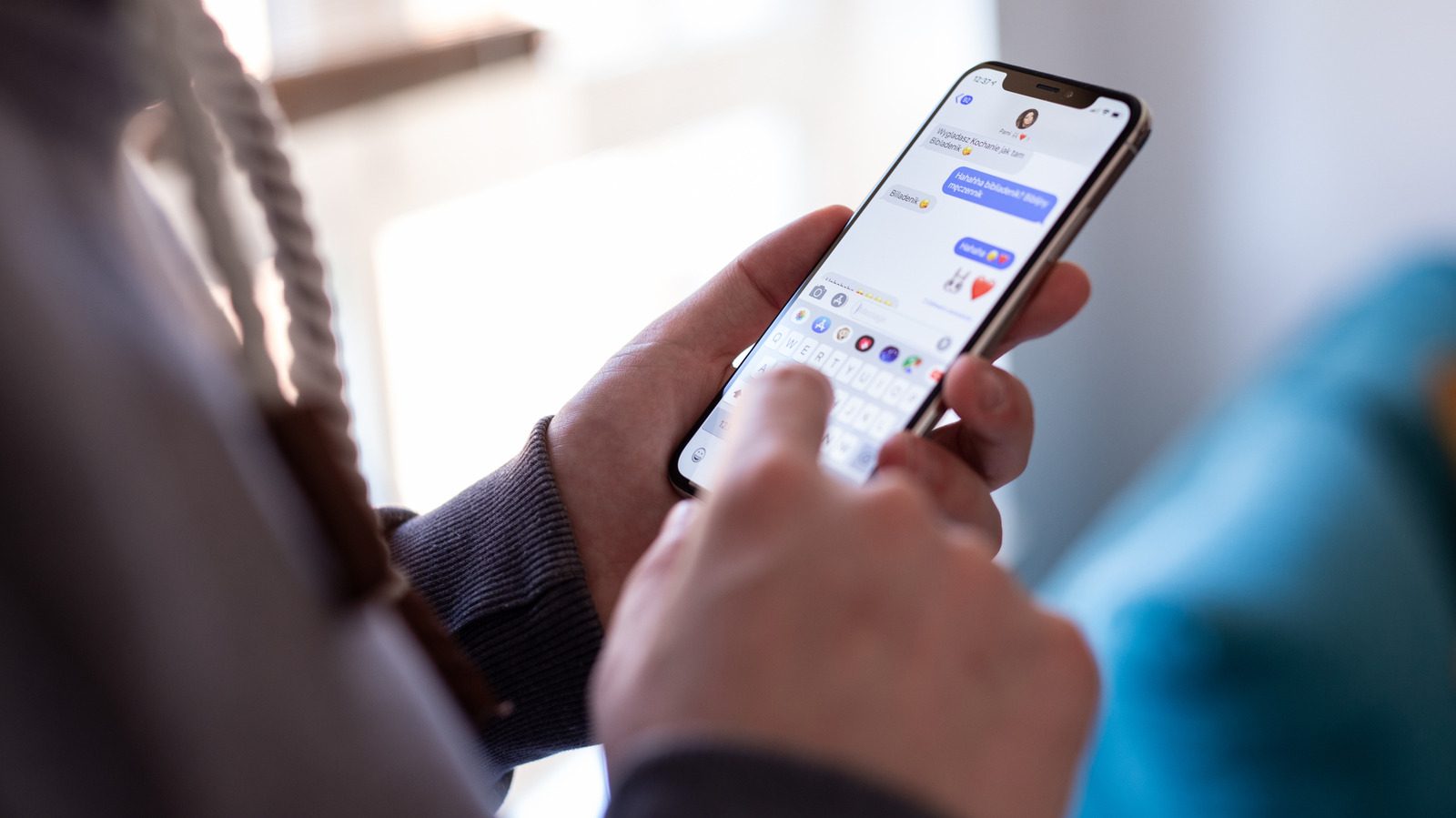
These dynamic visual assets, easily crafted from personal photos and videos, offer an unparalleled degree of personalization. They serve as a powerful enhancement to the user experience within Apple's Messages app and extend their utility to other platforms and applications. The process is remarkably straightforward, requiring no specialized photo editing skills, democratizing content creation for every iPhone owner.
The Power of Personalized Reactions: Why iPhone Stickers Matter
Unlike the static nature of traditional emojis or the often-generic nature of GIFs, iPhone stickers provide a unique opportunity for individuals to inject their personality directly into conversations. A perfectly timed sticker can capture an inside joke, invent a new meme within a friend group, or simply deliver a humorous reaction that no pre-set emoji could replicate. This level of personalization significantly enhances digital communication, fostering stronger connections and a more engaging chat environment.
The flexibility extends to their creation: any photo or video can be a candidate, including Live Photos for animated effects. Once created, these custom images are saved to a personal library for effortless reuse, streamlining the process of adding unique flair to subsequent interactions. The seamless management of this sticker library further underscores the feature's user-centric design, allowing for easy removal of unwanted or outdated stickers.
Creating Custom Stickers on Your iPhone: Two Core Methods
The innovation lies in the simplicity of sticker creation, offering two primary routes to transform your visual memories into dynamic chat elements. Both methods are designed for intuitive use, ensuring a low barrier to entry for even novice iPhone users.
Method 1: Leveraging the Photos App
The Photos app provides a direct and efficient pathway to sticker creation. The key to successful sticker generation here lies in selecting images with a clear, well-defined subject that stands out against its background.
- Select Your Image: Open the Photos app and navigate to the picture you wish to use. Ideal candidates often feature a prominent person, animal, hand, or distinct object in the foreground.
- Isolate the Subject: Tap to view the chosen picture. Then, press and hold firmly on the specific element you intend to convert into a sticker. The system will visually confirm the selection by making the element "shine" momentarily.
- Add to Library: A tooltip menu will appear adjacent to the selected subject. From this menu, choose "Add Sticker". This action immediately saves your newly created sticker to your personal sticker library.
It's important to note that if the "shine" effect or tooltip does not appear, the system may be struggling to discern the subject. In such cases, trying a different photo with a more pronounced foreground-background contrast is advisable. Furthermore, the system is intelligent enough to sometimes allow the creation of multiple distinct stickers from a single image. For those utilizing Live Photos, the sticker will automatically be animated; this feature can be toggled off via the "Live" option at the top-left if a static version is preferred.
Method 2: Direct Creation within the Messages App
For a more integrated approach, stickers can also be created directly within the Messages app, offering a slightly different user experience optimized for immediate communication needs.
- Access Sticker Menu: Open any conversation in the Messages app. To the left of the text input area, tap the "+" (Plus) icon.
- Initiate Sticker Creation: From the expanded menu, select "Stickers". Within your existing sticker list, tap the "+" (Plus) icon once more.
- Smart Selection: This action opens your photo collection with a notable enhancement: elements within your photos that are suitable for sticker conversion will be automatically highlighted. This streamlines the selection process, eliminating the need for manual pressing and holding.
- Finalize Sticker: Simply tap on a highlighted element, then tap the "+" (Plus) button at the bottom of the screen to add it to your library.
This method enhances user experience by proactively identifying sticker-ready subjects, making the creation process even more seamless for frequent communicators.
Enhancing and Managing Your Sticker Collection
Beyond creation, Apple has invested in robust management and enhancement features, ensuring that your sticker library remains dynamic and fresh.
Adding Visual Effects
To infuse your stickers with additional flair, the Messages app provides a selection of visual effects. Within the sticker management menu, press and hold a sticker, then select "Add Effect" from the tooltip. Options like "Outline" and "Shiny" are available, with some effects even reacting to the iPhone's movement, mimicking the visual appeal of a holographic trading card. This feature significantly boosts the visual engagement and uniqueness of each sticker.
Sending and "Sticking" Stickers in Messages
Sending a sticker is as simple as tapping it from your library, which adds it to your message draft like any attached photo. However, the true innovation in iMessage interaction comes from the "peel and stick" functionality:
- Press and hold a sticker from your library to "peel" it.
- Drag the peeled sticker directly onto any text or image within the conversation to "stick" it there.
This interactive feature unlocks new avenues for creative expression, allowing users to playfully photobomb images, use friends' faces as reactions, or layer humor onto existing message content. It's a testament to the platform's focus on innovative digital engagement.
Compatibility Considerations for Stickers
While stickers are designed for optimal performance within iMessage conversations (distinguished by blue bubbles), their functionality varies across other messaging protocols:
- RCS Chats (Android): Stickers generally send successfully in RCS chats, but the "peel and stick" interactive feature may not function as intended.
- SMS Conversations: Due to strict size limitations, stickers sent via SMS may appear blurry or degrade in quality.
Rearranging and Deleting Stickers
Managing your growing sticker collection is intuitive:
- Access the sticker library via the "+" (Plus) menu in Messages.
- Press and hold any sticker, then select "Rearrange" from the tooltip.
- This activates a "jiggle mode" similar to customizing the iPhone's Home screen. You can then drag stickers to reorder them or tap the "-" (Minus) button to delete them individually or in bulk.
Expanding Sticker Utility Beyond Messages
The versatility of iPhone stickers extends beyond Apple's native messaging platform, enhancing content creation and communication across various applications.
They are compatible with other popular messaging apps, such as WhatsApp. Users can access their custom stickers by tapping the Emoji button at the bottom-left of the keyboard and selecting the "Stickers" tab. While the "peel and stick" functionality specific to iMessage isn't available, the stickers themselves integrate seamlessly.
Furthermore, stickers are available in any iPhone app that incorporates Markup mode. This includes core applications like Photos, Mail, and Notes. For instance, within the Photos app:
- Open an image and tap the "Edit" (sliders) icon at the bottom.
- Select the "Markup" (marker) icon at the top.
- In Markup mode, tap the "+" (Plus) icon on the bottom toolbar and choose "Add Sticker".
Once added, stickers can be moved, resized, and copied within Markup mode, allowing for creative annotations and edits before saving the final image. This feature transforms stickers from mere chat reactions into versatile tools for visual communication and document enhancement.
Exploring Sticker Packs and Cross-Device Synchronization
For those seeking even more variety, the iPhone sticker ecosystem is enriched by pre-packaged sticker sets and third-party app integrations. Within the Stickers menu, users can discover icons for general emojis (which can function as stickers), Genmoji, Memoji, and compatible installed applications.
Many apps, ranging from social media to retail, now offer their own sticker packs, reflecting a growing trend in brand engagement and consumer interaction. Users can edit and rearrange these sticker packs and explore additional options on the App Store by selecting "Get Sticker Apps."
A significant advantage of this Apple ecosystem feature is its automatic synchronization. All created stickers are linked to your Apple account, ensuring they are readily available across all your Apple devices, including your iPad and Mac. This seamless cross-device availability underscores Apple's commitment to a cohesive and uninterrupted user experience, maximizing the utility and reach of personalized content.
Understanding iPhone Sticker Mechanics for Enhanced User Experience
The underlying mechanics of iPhone stickers are engineered for superior user experience and efficient digital content creation. The system leverages advanced on-device machine learning capabilities to accurately identify and isolate subjects in photos and videos. This AI infrastructure is critical for the "press and hold" and "smart selection" functionalities, significantly reducing the manual effort required from the user.
Furthermore, the integration across various applications – from Messages to Photos and even third-party apps via specific APIs – demonstrates a thoughtful approach to platform integration. This ensures that a single creative act (making a sticker) yields benefits across multiple facets of the user's digital life. The synchronization across Apple devices via the iCloud ecosystem further exemplifies data portability and accessibility, enhancing overall user convenience and the value proposition of the iPhone as a central creative hub.
The consistent availability and intuitive management of these personalized assets contribute directly to improved consumer demand for richer, more expressive forms of communication, showcasing how seemingly small features can significantly impact the overall value of a mobile operating system and its associated hardware.
Key Takeaways for iPhone Sticker Enthusiasts
- Personalization: Create unique reactions from your own photos and Live Photos.
- Ease of Use: No photo editing skills required, with intuitive creation methods in Photos and Messages apps.
- Dynamic Effects: Add visual flair like Outline and Shiny effects to your stickers.
- Interactive Messaging: Use "peel and stick" in iMessage for creative overlays on texts and images.
- Broad Compatibility: Utilize stickers in WhatsApp and any app supporting Markup mode (Photos, Mail, Notes).
- Seamless Management: Easily rearrange and delete stickers from your library.
- Ecosystem Sync: Stickers sync across all your Apple devices via your Apple account.
- Expandable Options: Explore sticker packs from third-party apps and the App Store.
The ability to create and manage custom stickers on your iPhone offers a compelling enhancement to digital interactions. It empowers users to move beyond generic responses and embrace a truly personalized form of expression, enriching everyday conversations and fostering a more engaging online environment. This feature is a prime example of how continuous innovation in mobile technology directly responds to evolving consumer demand for more sophisticated and personal digital tools.


